Introduction
This feature transforms how professionals interact with spreadsheets. Whether you are analysing data, building trackers or summarising information, Gemini allows you to stay within Google Sheets while leveraging AI to automate complex tasks. It significantly reduces the need for advanced spreadsheet knowledge and speeds up everyday work.
Competitor Comparison
Here is how Gemini in Google Sheets compares with other spreadsheet and AI tools:
| Tool | Description |
|---|---|
| Gemini in Google Sheets | Native AI assistant integrated directly into Sheets with natural language prompts |
| Microsoft Excel Copilot | AI powered assistance within Excel for data analysis and automation |
| ChatGPT | External AI tool requiring copy paste workflows for spreadsheet tasks |
| Airtable AI | AI features integrated into database style workflows |
| Notion AI | AI powered document and database assistant |
Unlike external AI tools, Gemini operates directly inside Google Sheets, allowing users to generate insights and structures without leaving the interface.
Primary Users
- Analysts identifying trends and generating reports.
- Project managers building schedules, trackers and timelines.
- Marketing teams creating campaign planners and content calendars.
- Business teams summarising data and generating insights.
- Non technical users who want to work with spreadsheets without learning formulas.
Difficulty Level
Gemini in Google Sheets is categorised as Easy difficulty.
- Users access it via the “Ask Gemini” button inside Sheets.
- Tasks are completed using simple natural language prompts.
- No coding or formula knowledge is required.
- Users can refine outputs by adjusting prompts.
This makes it accessible to beginners while still powerful for advanced users.
Use Case Example
Here is a practical example of using Gemini in Google Sheets for data analysis.
Task: A business wants to analyse customer survey data stored in a spreadsheet.
Steps:
- Open Google Sheets and click “Ask Gemini.”
- Enter a prompt such as:
“Summarise common themes in this feedback.” - Gemini analyses the data and generates a summary in a new section.
- Follow up with:
“Create a bar chart showing frequency of these themes.” - Gemini generates a chart automatically.
- Ask:
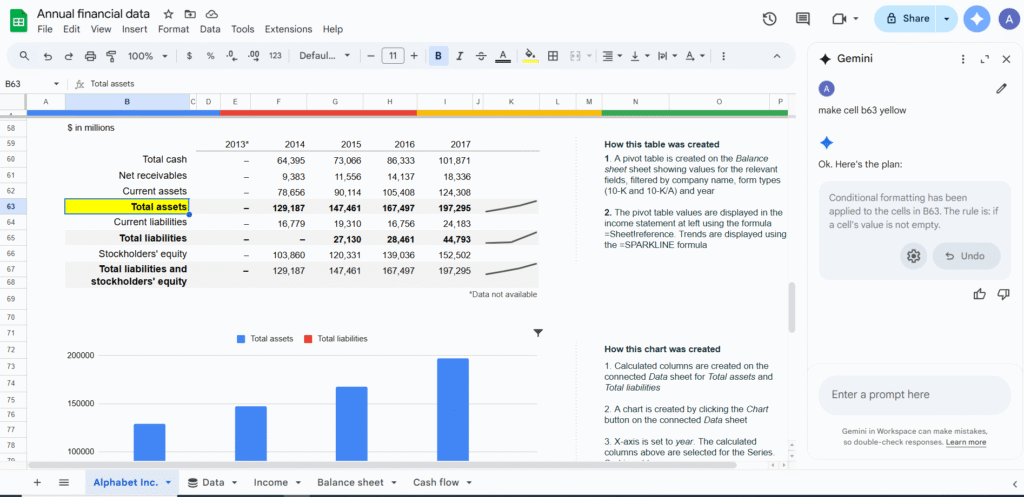
“Highlight cells where satisfaction score is below 3.” - Gemini applies conditional formatting to the dataset.
Result/Impact
Using Gemini in Google Sheets improves productivity and decision making.
- Reduces time spent creating formulas and analysing data.
- Enables faster insights through natural language queries.
- Makes spreadsheets more accessible to non technical users.
- Improves efficiency across reporting and data management tasks.
For teams working with data regularly, this can significantly streamline workflows.
Pros and Cons
Pros
- Generates tables, formulas, charts and insights from simple prompts.
- Eliminates the need for advanced spreadsheet knowledge.
- Keeps users within the Google Sheets environment.
- Speeds up data analysis and reporting.
- Supports multiple use cases across business functions.
Cons
- AI generated insights may not always be accurate and require verification.
- Limited to one data range at a time for some tasks.
- Certain features have usage limits such as processing a maximum number of cells.
- Cannot fully reference external sheets or files automatically.
Integration & Compatibility
Gemini in Google Sheets integrates directly within the Google Workspace ecosystem.
- Works inside Google Sheets alongside existing spreadsheet features.
- Connects with tools like Google Docs and Gmail through shared AI capabilities.
- Supports workflows across Workspace apps using side panel integrations.
- Compatible across desktop and cloud environments.
These integrations make it a seamless addition to existing workflows.
Support & Resources
Google provides a range of resources to help users get started with Gemini in Sheets.
- Official documentation with step by step guides and prompt examples.
- Workspace Labs settings to enable or manage features.
- Built in prompt suggestions within the Gemini panel.
- Feedback tools for improving AI generated outputs.
For professionals looking to simplify spreadsheet tasks and unlock faster insights, Gemini in Google Sheets offers a powerful way to combine data analysis with natural language AI.
If you want to explore how AI can accelerate your growth, consider joining a Nimbull AI Training Day or reach out for personalised AI Consulting services.
Introduction
Gemini in Google Sheets is an AI-powered side panel that helps professionals build tables, generate formulas, analyse data, create charts, apply formatting, sort and filter information, and summarise files all directly within a sheet. It brings natural language into spreadsheet workflows.
Competitor Comparison
Unlike external AI tools or static auto-fill features, Gemini integrates directly into Sheets as a side panel. You type prompts and let AI generate structure or insights. This keeps you in the same interface while delivering rich generative capabilities unique among spreadsheet tools.
| Primary Users | Why Gemini Fits |
|---|---|
| Analysts | Ask Gemini to identify trends or create pivot tables easily |
| Project managers | Generate schedules, trackers and event plans from prompts |
| Marketers | Build campaign planners, content calendars or funnels |
| Business teams | Summarise data or explain sheets in plain language |
Pricing & Availability
Gemini in Sheets is available through eligible Google Workspace subscriptions or Google AI plans, including Business, Enterprise, Gemini Pro, Ultra or Education add-ons.
Difficulty Level
Easy. Users launch Gemini from the “Ask Gemini” button in the Sheets interface. They can pick prompts or type their own. It handles tasks with natural language. No AI or coding experience needed.
Use Case Example
Imagine you hold customer survey data in rows. Open Gemini and type:
“Summarise common themes in this feedback.”
Gemini provides insights in a new area. You can follow up:
“Create a bar chart of frequency for these themes.”
Gemini creates it. Then you ask:
“Highlight cells where satisfaction score is below 3.”
Gemini applies conditional formatting. You watch structure build by prompt.
Steps:
Open Sheets and click “Ask Gemini.”
Use a suggested prompt or write your own.
Watch Gemini generate tables, formulas, charts or analysis.
Insert output into sheet using “Insert.”
Adjust prompts or results as needed.
Pros and Cons
Pros
- Generates structure, analysis, visuals and formatting from prompts
- Streamlines workflows with a prompt-driven UI
- No formula knowledge needed
- Works across language contexts depending on setup
Cons
- AI analysis can be inaccurate. Always verify results manually.
- Only supports one data range at a time. Limits complex multi-range work.
- AI function for filling text in empty cells only supports text output, processes up to 200 cells at once, and cannot reference entire sheet or Drive content.
Integration & Compatibility
Gemini is embedded within Sheets and works alongside existing features. It does not yet pull from other Sheets unless referenced manually. Custom AI chatbots (“Gems”) are now accessible across Workspace apps in side panels, allowing custom workflows from Docs or Gmail into Sheets.
Support & Resources
Google provides detailed documentation and prompt examples. Workspace Labs users can turn features on or off. You can submit feedback on generated suggestions.
If you want to explore how AI can accelerate your growth, consider joining a Nimbull AI Training Day or reach out for personalised AI Consulting services.